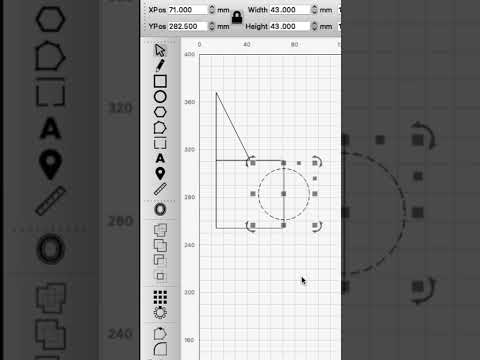
Precision layout is not the same as “it looks aligned”. LightBurn can snap to nodes, midpoints, centers, intersections, lines and the grid, but you must know which target was captured.
Recognize the snap
As the pointer approaches valid geometry, watch its icon and the highlighted point. Move slowly enough to distinguish a node from a midpoint, center, intersection or plain line. If multiple targets are close, zoom in or temporarily hide/lock irrelevant objects.
Expected: the pointer shows the intended snap type and the moved object's reference point lands on that exact target. If the icon is ambiguous, cancel the move and verify at higher zoom.
Use automatic and draggable guides
Hold Alt/Option while dragging selected objects to show temporary alignment guides between edges and centers. For persistent horizontal or vertical guides, drag from the Workspace rulers. LightBurn places draggable guides on T1, where they can be moved, snapped to or locked.
Because a Tool-layer guide can affect Frame/origin depending on its Frame setting and Start From mode, check Cuts / Layers and frame again before output.
Measure instead of assuming
Activate Measure from the ruler icon in the Creation Toolbar or with Alt/Option+M. Hover over a shape to see overall size, perimeter, open/closed state and segment information. Drag between two points for a temporary distance; hold Shift to constrain horizontal, vertical or 45-degree direction.